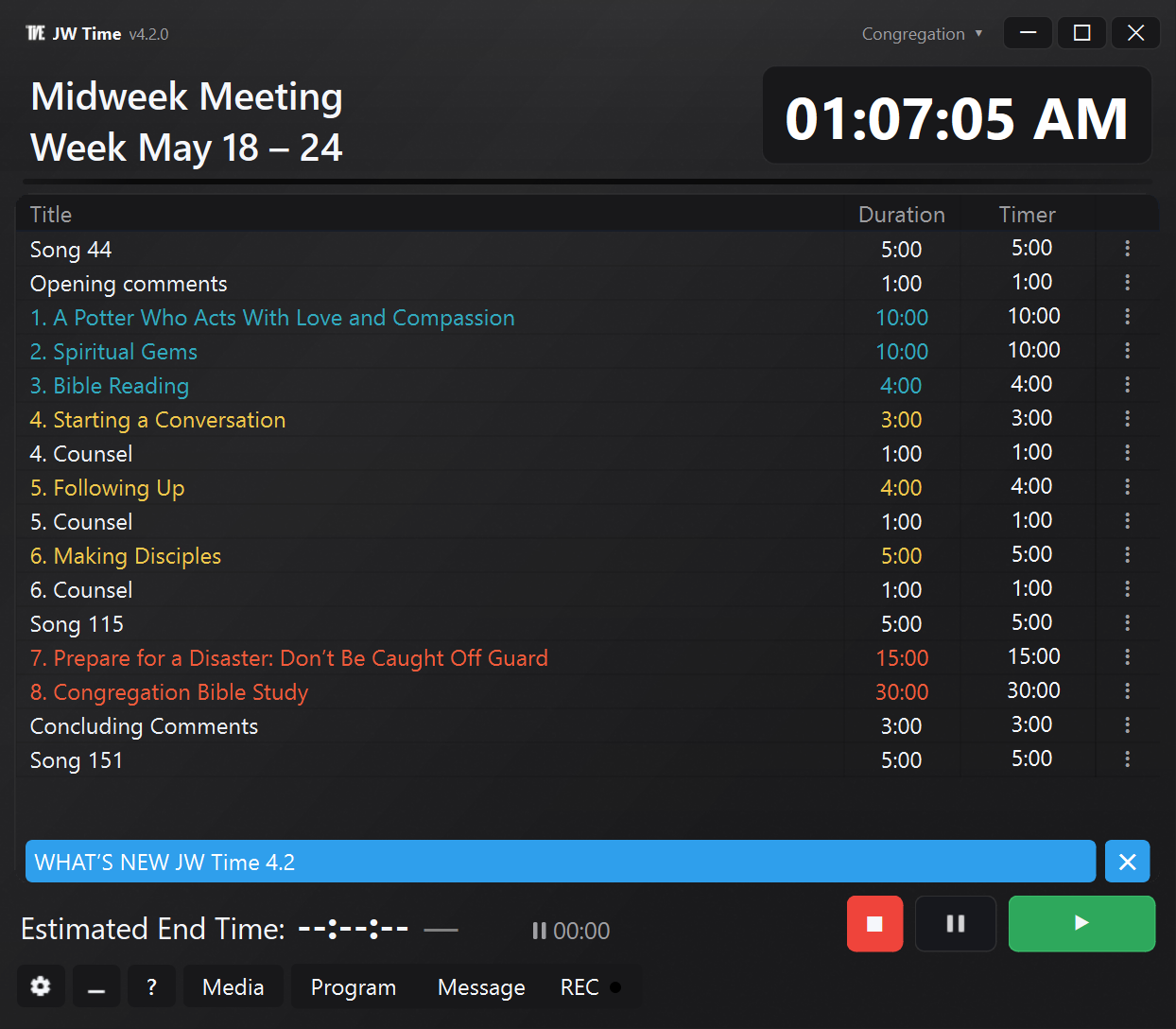
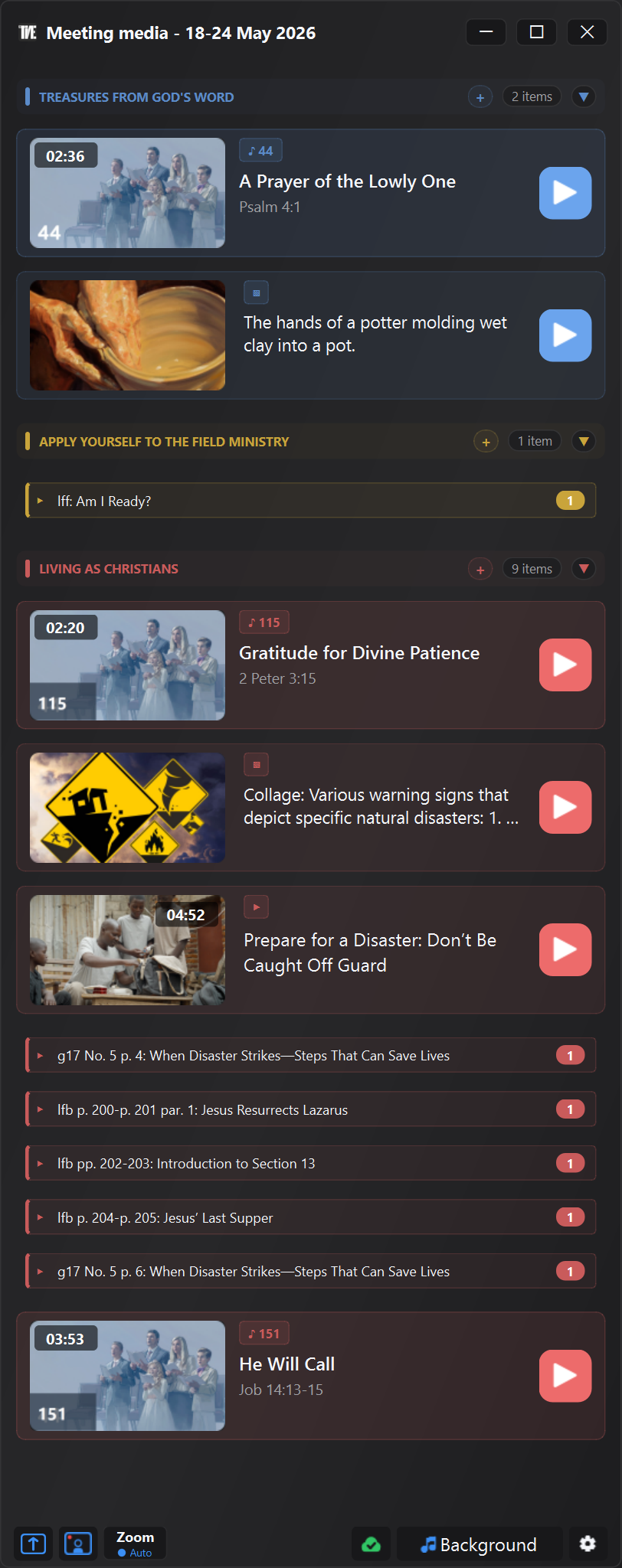
Integrated media, Public Screen, congregation profiles, remote-controlled Web Monitor, more flexible recording and more comprehensive tools for meeting preparation.
Version 4.0.0 adds support tools for preparing and checking available content, showing it on the Public Screen, and managing timers, media, and recording with fewer manual steps.
The functions foreseen for 3.0 have merged into 4.0.0, together with the new Media system, the Public Screen and the congregation profiles. This is why the history goes directly from 2.1.0 to 4.0.0.
Below you will find the main innovations, with concrete examples of what changes in real use of the app.
Preview of the new interface and Media Window of JW Time 4.0.
In Brief NEW
- View and organize images, videos, PDFs, URLs, songs, and already available official content with support from the Media Window.
- Show media and visual content on a Public Screen separate from the Time Counter Screen.
- Customize the Time Counter Screen with presets, editors, backgrounds, colors, logo, clock and levels.
- Use separate congregation profiles for screens, windows, servers, recording, media, and layout.
- Open the Web Monitor via QR and, if authorized, check the timer and schedule from the browser.
- Prepare more complete packages and backups for working offline or moving your configuration.
Media and meeting preparation NEW
The Media Window offers a support tool for preparing and checking available content more easily.
Note: the Media Window is a technical support feature. It helps prepare and check available content more easily, but its practical use always remains tied to local needs, congregation direction, and arrangements.
- Add local files, images, videos, PDFs and URLs.
- View songs, official media and content linked to the week.
- Organize manual content into groups and reorder items according to the program.
- Check in advance what is available and what is missing.
- Open or show content on the Public Screen without searching for it in different folders.
Official media, playlists and packages NEW
JW Time can help organize and reuse official content that is already available and local content in a more orderly way, even when you need to work offline.
- Download and reuse official media already present locally.
- Manage a dedicated cache for official songs, with availability checks.
- Import playlists and connect already prepared material.
- Create or use media packs with local files, URLs, images and official content.
- Open the Media Checker to see missing files, offline content, problems and local sizes.
- Copy the check details when you need to check or share an issue.
Important note: the alternate path introduced in JW Time 2.1.0 applies to weekly and weekend programs. Official media do not have a second recovery server. If a router, firewall, DNS service, or content filter blocks JW Time from reaching jw.org or religious sites, the Media Window may not be able to download official media. Already downloaded files, local media, and manually added content remain usable.
Time Counter Screen and Public Screen NEW
The displays have been separated: the Time Counter Screen is for the conductor, the Public Screen is for the room.
- Start from presets ready for the Time Counter Screen.
- Edit layout, layers, colors, backgrounds, logo, clock and texts with the editor.
- Show images, PDFs, videos and visual content on the Public Screen.
- Keep the timer visible to the host separate from the content shown to the audience.
- Better recovers off-screen windows and changed monitor configurations.
Congregations, profiles and backups NEW
Congregation profiles avoid having to reconfigure JW Time when the app is used in different contexts.
- Keep language, theme, interface scale, screens and windows separate.
- Save different configurations for Web Server, recording, media and layout.
- Import, export and duplicate profiles to prepare similar configurations.
- Transfer settings to another computer with more complete backups.
- Existing settings are migrated to the first profile.
Web Server and remote control NEW
The Web Server can only be used to view the program or, if authorized, to intervene from the browser.
- Open Web Monitor from your phone, tablet, or other computer on the same network.
- Use the QR to reach the Web Server address more quickly.
- Follow timer, program and estimated end time in real time.
- With the Controller role you can start, stop, move to the next part and change values available in the schedule.
- Protect Editor, Controller and remote access with PIN when needed.
Recording and audio IMPROVED
Recording has been better adapted to the actual flow of the meeting, where pauses, resumes and quick checks can be useful.
- Manage pause and resume recording more directly.
- Better control configured audio devices.
- See useful information from the REC button and audio levels.
- Integrate recording, media and timer without opening unnecessary panels.
Settings, Startup Wizard and Interface IMPROVED
Settings have been reorganized by region and the Startup Wizard helps you set up the essential parts.
- Configure language, displays, server, backup and main options during first boot.
- Find the theme, interface scale and language of the program more easily.
- Use separate settings panels for Media, Zoom, Web Server, Recordings and Backups.
- Consult the What's new window within the app even after the first launch.
Stability and fixes CORRECT
Many fixes concern practical situations that may occur during weekly use.
- Better remembered windows and more reliable recovery after monitor changes.
- Cleaner app closing, even with servers, media and screens open.
- More stable management of Public Screen, Web Server, media and recording.
- Improved downloads, media cache, local paths and temporary files.
- More consistent app states when changing weeks, languages, congregations, or programs.
 JW Time